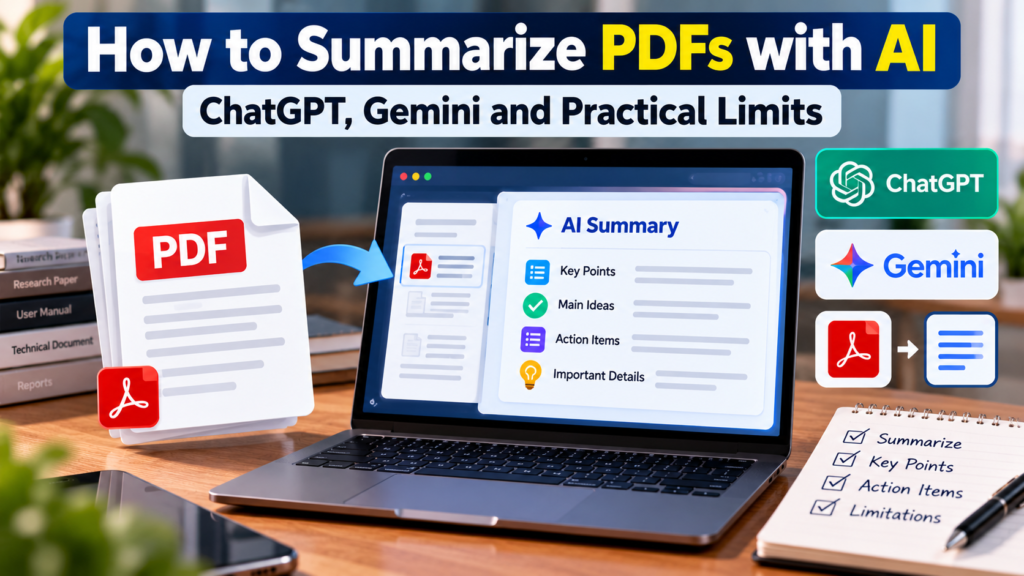
You can summarize PDFs with AI in under a minute. Upload the file to an assistant such as ChatGPT or Gemini, ask for the kind of summary you need, and check the result against the original. This guide shows the exact steps, the best prompts, and the practical limits that most tutorials skip, such as file size, scanned pages, tables and privacy.
Last updated: October 2026. File limits and features change often, so we link to the official help pages where you can confirm the current numbers.

Quick Answer: How to Summarize a PDF With AI
- Open ChatGPT or Gemini and choose the attach or upload option.
- Upload your PDF.
- Type a clear prompt, for example: “Summarize this PDF in 5 bullet points for a busy manager.”
- Read the summary, then check key numbers and quotes in the original file.
Table of Contents
- Step-by-Step: Summarize PDFs With AI
- 7 Prompts That Give Better Summaries
- Practical Limits to Know
- ChatGPT vs Gemini: PDF Limits at a Glance
- How to Handle Very Long PDFs
- When AI Summaries Go Wrong
- Privacy: What Not to Upload
- FAQs
Step-by-Step: Summarize PDFs With AI
Using ChatGPT
- Open ChatGPT in your browser or app.
- Click the + or paperclip icon next to the message box.
- Choose Upload from computer (or add the file from a connected cloud drive if available).
- Wait for the file to finish uploading.
- Type your prompt and press send.
Using Gemini
- Open Gemini on the web or in the app.
- Click the Add files or + button in the prompt box.
- Choose Upload files, or pick a file from Google Drive.
- Type your prompt and send it.
Menu names change from time to time, so look for an attach, plus or add-files button near the message box.
7 Prompts That Give Better Summaries
To summarize PDFs with AI well, be specific. A vague request gives a vague summary. Instead, tell the AI who the summary is for, how long it should be and what format you want. Here are prompts you can copy.
- Executive summary: “Summarize this PDF in 5 bullet points for a busy manager. Start with the main conclusion.”
- Simple language: “Explain this document in simple English for a beginner. Define any technical terms.”
- Section by section: “Give a one-paragraph summary of each section, using the original headings.”
- Key numbers: “List every figure, date and deadline in this PDF in a table, with the page number.”
- Action items: “List the decisions made and the tasks assigned, with who is responsible.”
- Study notes: “Turn this chapter into study notes with key terms, definitions and 5 practice questions.”
- Critical view: “What are the weaknesses, risks or missing information in this document?”
Tip: Ask for page numbers or short quotes. This makes it much easier to verify the summary.
Practical Limits to Know
Learning how to summarize PDFs with AI also means knowing where the tools struggle.
- File size and length. Each tool has a maximum file size and a maximum amount of text it can read at once. Very long documents can be cut off or only partly read.
- Scanned PDFs. If your PDF is a photo or scan of a page, the text may not be selectable. Some tools can read it, but accuracy can drop. Run OCR first if the result looks wrong.
- Tables, charts and images. AI can misread complex tables, footnotes and charts. Always check figures yourself.
- Usage caps. Free plans usually limit how many files you can upload in a period. Paid plans often raise those limits.
- Password-protected files. Remove the password first if you are allowed to do so.
- Language and layout. Multi-column layouts, unusual fonts and mixed languages can confuse text extraction.
ChatGPT vs Gemini: PDF Limits at a Glance
The table below uses the figures that the official help pages described at the time of writing. Because limits change, confirm them before you rely on them.
| Item | ChatGPT | Gemini |
|---|---|---|
| Maximum file size | Up to 512 MB per file | Up to 100 MB per file |
| Text or document length | Up to about 2 million tokens per file | Depends on the context window of your plan; Google says paid plans offer a larger window |
| Files at once | Multiple files per message, with plan-based caps | Up to 10 files in one prompt |
| Usage limits | Rolling upload and usage caps that vary by plan | Rolling limits that reset after some time |
Official sources: OpenAI Help Center: file uploads and Google Gemini Help: upload and analyze files.
How to Handle Very Long PDFs
If you need to summarize PDFs with AI that run to hundreds of pages, do not give up. Use one of these methods.
- Split the PDF into chapters or sections and summarize each part.
- Summarize in two rounds. First, ask for a short summary of each section. Then, paste those summaries into a new chat and ask for one final summary.
- Ask targeted questions. For example, “What does the document say about refunds?” This is often faster than a full summary.
- Use only the pages you need. Extract the important pages into a smaller file.

When AI Summaries Go Wrong
Even when you summarize PDFs with AI correctly, a good summary can contain errors. Watch for these problems:
- Invented details. The AI may add a number or a claim that is not in the file.
- Missing context. Important exceptions, footnotes and conditions are often dropped.
- Wrong emphasis. The summary may highlight minor points and skip the main one.
- Misread tables. Rows and columns can be mixed up.
To reduce errors, ask the AI to quote the exact sentence behind each key claim. Then confirm it in the PDF. For legal, medical, financial or academic work, never rely on a summary alone.
Privacy: What Not to Upload
Before you summarize PDFs with AI, think about what is inside them. Avoid uploading files that contain passwords, bank or card details, government ID numbers, private medical records or confidential company documents, unless your organisation has approved the tool. Also check the privacy settings of your account, including whether your chats may be used to improve the service.
Keep Learning
To understand how document question-answering works behind the scenes, read what is RAG in AI. Better prompts also give better summaries, so see our guide on how to write better AI prompts, and browse more How-To & Guides.
Frequently Asked Questions
Can ChatGPT summarize a PDF?
Yes. Upload the PDF using the attach or plus button, then ask for a summary in the format you want. Check key facts against the original, because AI can make mistakes.
Can Gemini summarize a PDF?
Yes. In Gemini, add your PDF using the add files option or choose it from Google Drive, then write a prompt. Google’s help page lists limits such as up to 10 files per prompt and 100 MB per file.
What is the best prompt to summarize a PDF with AI?
A good prompt states the audience, length and format, for example: Summarize this PDF in 5 bullet points for a busy manager and include page numbers for key facts.
Why does AI miss parts of my PDF?
The file may be too long, scanned as an image, or contain complex tables and layouts. Split the document, run OCR on scanned pages, or ask targeted questions about specific sections.
Is it safe to summarize PDFs with AI tools?
It depends on the document and the tool. Avoid uploading sensitive or confidential files unless your organisation allows it, and review the privacy settings of your account.
Can I trust an AI summary of a PDF?
Use it as a fast first draft, not as the final word. Verify numbers, dates and quotes in the original, especially for legal, medical, financial or academic documents.
Final Thoughts
Now you know how to summarize PDFs with AI in a way that saves time and avoids common mistakes. Upload the file, write a clear prompt, respect the tool’s limits and always verify the details that matter. Used this way, AI becomes a quick reading assistant, not a replacement for your own judgment.