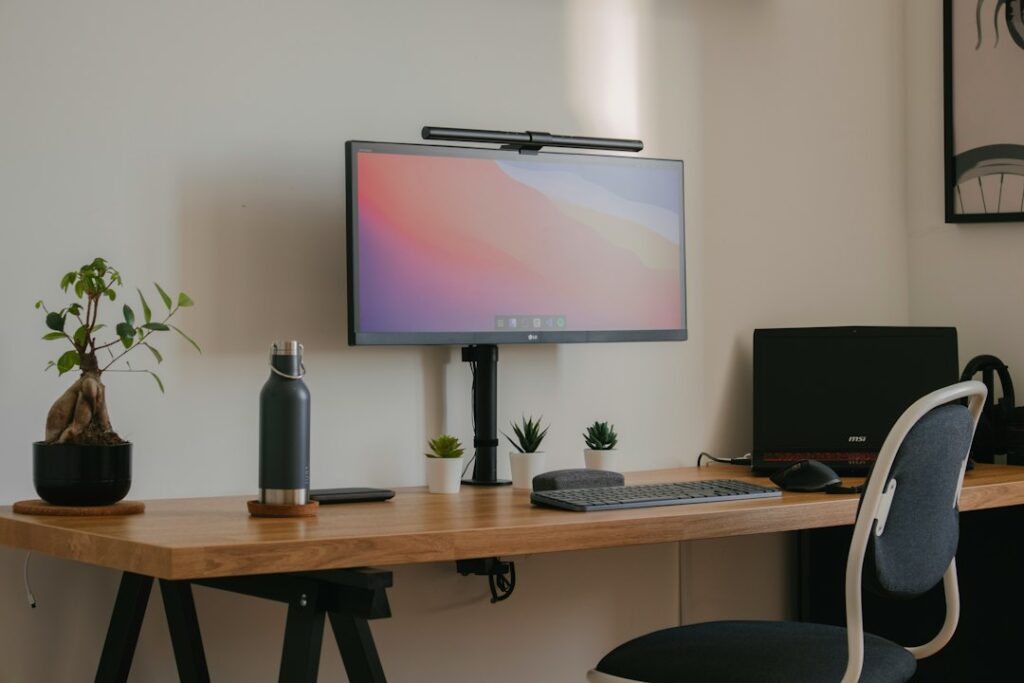
Laptop productivity hardware should solve a real problem, not add clutter. The best upgrades address limited screen space, uncomfortable typing, insufficient ports, slow file transfers or poor desk ergonomics while fitting your budget and laptop’s compatibility limits. This guide compares monitors, docks, keyboards, stands and storage, focusing on practical value rather than buying more equipment than you need.
Begin by identifying the biggest friction in your workday. A second monitor can help with side-by-side documents, a stand can raise the screen, and a USB-C dock can reduce cable swapping—but only if your laptop supports the required features. Check port specifications, desk space and return policies before buying. If you also use AI tools for daily tasks, our guide to AI productivity for freelancers can help you match software to your workflow.
Elevating Ergonomics with Aluminum Laptop Stands
Staring down at a laptop screen resting flat on a desk forces the neck into a downward angle, leading to posture fatigue over long work sessions. Elevating the display to eye level resolves this issue, though doing so necessitates an external keyboard and mouse to maintain comfortable hand placement.
Market options such as the DailyObjects Arete Laptop Stand and the Zebronics ZEB-NS2000 desk stand offer structured solutions for users seeking better alignment. The DailyObjects model supports laptops up to 16 inches and handles devices weighing up to 5kg, utilizing an aluminum frame with anti-slip EVA pads and a foldable structure for portability. Similarly, the Zebronics ZEB-NS2000 supports devices up to 17 inches, featuring seven adjustable height levels ranging from 68mm to 144mm. Both designs incorporate open-frame architectures that permit airflow around the base, assisting with passive heat management during extended workloads.
When selecting a laptop stand, consider trade-offs between portability and stability. Fixed-angle aluminum risers offer maximum rigidity and durability but lack height adjustability, making them less adaptable if you frequently shift between sitting and standing desks. Conversely, multi-level foldable stands offer travel flexibility but can exhibit minor wobbling during heavy typing if the locking hinges loosen over time.
Precision Input: Mice and Mechanical Keyboards
While laptop trackpads have evolved, heavy document editing, spreadsheet navigation, and creative applications demand dedicated pointing devices. Budget wireless mice like the Logitech Signature M650 provide contoured shapes, customizable thumb buttons, and multi-device switching via Bluetooth or 2.4GHz wireless receivers, running efficiently on a single AA battery. For basic wired connectivity, options like the Dell MS116 optical mouse offer reliable plug-and-play USB navigation at 1,000 DPI.
When long-form writing or coding replaces casual browsing, integrated laptop keyboards often feel cramped and lack tactile feedback. Compact mechanical keyboards like the EvoFox Ronin TKL or the G.Skill KM250 introduce responsive mechanical switches, customizable lighting, and space-saving tenkeyless layouts. These keyboards reduce finger fatigue and provide a more satisfying tactile response during intensive typing sessions.
A mechanical keyboard is a preference rather than a guaranteed productivity upgrade. Switch feel, key layout, typing habits and noise level matter more than the label alone, and no switch type guarantees faster typing or fewer errors. Mechanical models can be heavier and louder than membrane keyboards; in shared spaces, consider quieter switches, dampening features or a low-profile membrane keyboard before buying.
Expanding Screen Real Estate with External Monitors
Juggling multiple windows on a 13-inch or 15-inch laptop screen can restrict workflow efficiency and increase eye strain. Integrating an external monitor fundamentally changes multitasking capabilities by providing expansive workspace horizons.
Budget-conscious display choices like the 24-inch Sceptre R1500 offer 1080p resolution and straightforward HDMI connectivity within an accessible price bracket. For users requiring higher refresh rates and wider workspace dimensions for creative applications or gaming, larger panels such as the 32-inch Samsung Odyssey G3 deliver Full HD resolution supported by a 180Hz refresh rate, 1ms response time, and AMD FreeSync technology to minimize visual tearing.
Integrating a secondary display introduces a few technical considerations. Users must ensure their laptop’s integrated graphics or dedicated GPU can support the desired resolution and refresh rate via available ports such as HDMI, DisplayPort, or USB-C DisplayPort Alt Mode. Furthermore, utilizing a multi-monitor setup consumes additional desk space and requires proper cable management to prevent workspace clutter.
Managing Workspace Audio and Focus
Open office environments and shared living spaces present constant acoustic distractions. Standard laptop speakers rarely deliver rich sound for media consumption or clear audio during conference calls. Compact desktop speakers like the USB-powered Creative Pebble V3 deliver 16 watts of audio output alongside Bluetooth streaming capabilities, making them suitable for tight desk spaces.
When complete concentration is required, over-ear headphones equipped with active noise cancellation, such as the Anker Soundcore Q20i, block out ambient disturbances. Alternatively, headsets featuring dedicated boom microphones—like the HP X1000 wireless headset or the wired Corsair HS50 Pro—ensure clear voice transmission during virtual meetings and collaborative sessions.
Optimizing Desk Illumination and Surface Protection
Beyond traditional computing peripherals, secondary desktop enhancements play a vital role in maintaining daily productivity and reducing physical strain. Desk space in dorm rooms or professional offices is frequently limited, making targeted lighting solutions essential for late-night study or writing sessions.
Devices like the Quntis Monitor Lamp mount directly onto display panels to shine light cleanly onto the workspace below without creating glare or screen reflections. It features dimmable ambient-intelligent auto-dimming and color temperature adjustments, accompanied by a wireless controller for easy modification. Paired with a wide desk surface protector like the Corsair MM350 Pro—which provides a 36-inch waterproof and stain-resistant surface acting as both a mouse pad and a washable mat—users can protect their furniture while maintaining smooth mouse tracking.
Evaluating Core Laptop Specifications and Power Endurance
Accessories can enhance a setup, but they cannot compensate for fundamental hardware limitations. When configuring a laptop for long-term productivity, prioritizing foundational specifications is crucial. Industry reviews highlight that components such as RAM capacity, screen quality, battery endurance, and processing architecture dictate day-to-day responsiveness.
For modern multitasking workflows involving multiple browser tabs, communication apps, and productivity suites, 16GB of RAM serves as a practical baseline, while power users and creators benefit from upgrading to 32GB. Similarly, processor efficiency heavily influences untethered workflow endurance; modern ARM and x86 architectures, such as Qualcomm’s Snapdragon X chips, deliver exceptional battery life that minimizes reliance on wall chargers during travel or remote work.
Laptop Productivity Hardware: How to Choose Upgrades
Building an efficient desk ecosystem does not require purchasing every available peripheral simultaneously. Buyers should evaluate their immediate workflow bottlenecks using a structured approach:
- Identify Physical Discomfort: If neck strain or wrist fatigue occurs regularly, prioritize an adjustable laptop stand, an external mouse, and a mechanical keyboard.
- Assess Multitasking Demands: If switching between multiple reference windows slows down work, investing in an external monitor yields immediate productivity gains.
- Evaluate Acoustic Environment: In loud shared environments, active noise-cancelling headphones or dedicated communication headsets are more valuable than desk speakers.
- Verify Desk Space Constraints: Compact setups benefit from foldable stands, tenkeyless keyboards, and space-saving audio solutions that leave room for writing and manual notes.
Frequently Asked Questions
Do laptop stands actually improve performance?
A laptop stand can raise the screen to a more comfortable viewing height and may improve airflow on some designs. It does not guarantee lower temperatures or prevent thermal throttling; results depend on the laptop’s cooling design, vents and workload. If you raise the laptop, use an external keyboard and mouse so your hands and wrists remain in a comfortable position.
Can I use any external mouse and keyboard with my laptop?
Yes. Modern operating systems support plug-and-play USB and Bluetooth peripherals automatically. However, ensure your laptop has enough USB ports or consider a Bluetooth adapter or USB hub if port availability is limited.
Are mechanical keyboards necessary for general office work?
Mechanical keyboards are not mandatory, but they offer superior tactile feedback and durability compared to standard laptop keyboards, making them beneficial for users who type thousands of words daily.
The Practical Takeaway
Transforming a standard laptop configuration into a high-performance workstation relies on targeted improvements rather than accumulating excessive gadgets. By focusing on ergonomic alignment, input precision, and visual workspace expansion, users can construct a resilient setup tailored to their exact professional and academic requirements.
Sources & further reading
- The 5 laptop features worth spending extra on (and 3 that are mostly hype) – ZDNET — ZDNet
- 9 laptop accessories I’d actually buy for college — all under $100 — PC World
- 10 Laptop accessories on Flipkart that can change how you work and study | Mint — Mint

