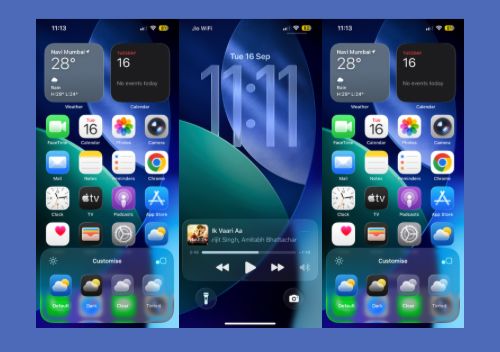
Apple’s iOS 26 is a useful update to evaluate by looking at the changes that affect everyday use rather than treating the release as a list of headline features. The update introduces the Liquid Glass interface, changes to Phone and Messages, improvements to Camera and Photos, new CarPlay and Apple Music features, and additional Apple Intelligence capabilities on supported iPhones.
This iOS 26 guide focuses on what changes, which iPhones support it, which features depend on newer hardware or language availability, and what to check before installing it. If you are comparing iPhone models before upgrading, see our iPhone buying comparison for another perspective on hardware choices.
What changes in iOS 26?
1. Liquid Glass design
iOS 26 introduces Apple’s Liquid Glass design across system interfaces. The visual treatment changes elements such as the Lock Screen, Control Centre, app icons and navigation areas while keeping the underlying iOS structure familiar.
The practical difference is mostly visual: menus, controls and system surfaces use more translucent and adaptive elements. Users who prefer a simpler appearance should check the available appearance and accessibility settings after updating.
2. Phone and Messages get more useful screening tools
iOS 26 adds tools intended to reduce interruptions. Call Screening can ask unknown callers for information before the call reaches you, while Hold Assist can wait for a live agent during supported calls. Messages also gains options for screening unknown senders, polls and conversation backgrounds.
These features are more useful to people who receive frequent unknown calls or messages than to users who rarely interact with unknown contacts.
3. Apple Intelligence depends on your iPhone and language
Apple Intelligence is not available on every iPhone that can run iOS 26. Apple lists Apple Intelligence support for newer hardware, including iPhone 15 Pro and iPhone 15 Pro Max and later supported generations. Availability also depends on language and region.
iOS 26 expands Apple Intelligence with features such as Live Translation, visual intelligence improvements, Genmoji and Image Playground updates, and intelligent actions in supported workflows. Apple says some features may not be available in every region or language.
4. Camera, Photos, Maps, Music and CarPlay
Several everyday apps receive functional changes rather than a completely new workflow. Camera and Photos get interface and organisation updates, Maps adds changes around places and navigation, Apple Music introduces AutoMix, and CarPlay receives a refreshed interface with additional interaction options.
Apple also introduced the Apple Games app as a central place to discover and manage games.
Which iPhones support iOS 26?
Apple’s current support documentation lists iOS 26 compatibility from the iPhone 11 generation through newer models, along with iPhone SE (2nd generation and later). The complete compatibility list includes:
- iPhone 11, 11 Pro and 11 Pro Max
- iPhone 12 series
- iPhone 13 series
- iPhone 14 series
- iPhone 15 series
- iPhone 16 series, including iPhone 16e
- iPhone 17 series and iPhone Air
- iPhone SE (2nd generation and later)
Compatibility with iOS 26 does not mean every feature is available on every compatible model. Apple Intelligence has additional hardware requirements, so older supported iPhones can receive iOS 26 without receiving the full Apple Intelligence feature set.
How to update to iOS 26 safely
- Back up the iPhone. Use iCloud or a computer backup before starting a major software update.
- Check storage. Make sure there is enough free space for the download and installation process.
- Connect to power. Keeping the iPhone connected to a charger reduces the chance of an interrupted installation.
- Use a reliable Wi-Fi connection. Avoid starting a large update over an unstable connection.
- Open Settings → General → Software Update. Install the update shown for your device.
- After updating, check important settings. Review notifications, privacy permissions, battery settings and any features you use regularly.
What to check after installing iOS 26
A major iOS update can change familiar controls and settings. Instead of judging the update immediately, spend a few minutes checking the areas that matter to you.
- Battery: monitor battery behaviour after the update rather than relying on the first few hours of use.
- Notifications: check whether important apps still have the notification permissions you expect.
- Privacy: review permissions for location, photos, microphone and Bluetooth.
- Apple Intelligence: if your iPhone supports it, check the language and region requirements for the features you want.
- Storage: confirm that photos, messages and frequently used apps remain available after installation.
What iOS 26 does not guarantee
Installing iOS 26 does not automatically give every iPhone the same feature set. Some capabilities require newer hardware, and Apple notes that feature availability can vary by language and region. This is particularly important for Apple Intelligence features. For more on AI features available on mobile devices, see our AI apps for Android and iPhone guide.
It is also better not to assume that a feature mentioned in an announcement works in exactly the same way in every country. Before relying on an AI, translation or communication feature, check Apple’s current availability documentation for your language and region.
Where to verify the information
For compatibility, Apple’s support documentation is the appropriate source to check before installing iOS 26. Apple also publishes feature-availability information for Apple Intelligence and other regional features.
Bottom line
iOS 26 is more than a visual redesign, but the value of the update depends on the iPhone model and the features you actually use. The Liquid Glass interface affects the overall experience, while call screening, Messages improvements, Camera and Photos changes, CarPlay updates and Apple Intelligence add more targeted functionality.
If your iPhone is compatible, the safest approach is to make a backup, install the update through Software Update, and then verify the settings and features that matter to you. For Apple Intelligence and other region-dependent features, use Apple’s current support pages rather than assuming that every advertised capability is available on every device.